

Might and Magic IV and V: World of Xeen (MMModern)
Port nativo de Might and Magic IV and V: World of Xeen (MMModern) para PC.
Might and Magic IV and V: World of Xeen (MMModern)
Port nativo basado en su ficha de origen.
README del repositorio
MMModern



[!IMPORTANT] MMModern is an unofficial fan project and is still incomplete. It ships no game data: you need your own English World of Xeen CD edition, sold by GOG as "Might and Magic 4-5".
MMModern is an open-source reimplementation of the engine behind Might and Magic IV: Clouds of Xeen and Might and Magic V: Darkside of Xeen / World of Xeen, running on your own copy of the game data. The goal is to match the original DOS game in how it looks, plays and behaves. Quality-of-life options may come later, and they will be off by default.
MMModern is not a port of ScummVM's Xeen engine. It reuses some ScummVM code, but the reference is the original DOS game: where ScummVM behaves differently, MMModern follows DOS. The ScummVM differences page lists the known cases.
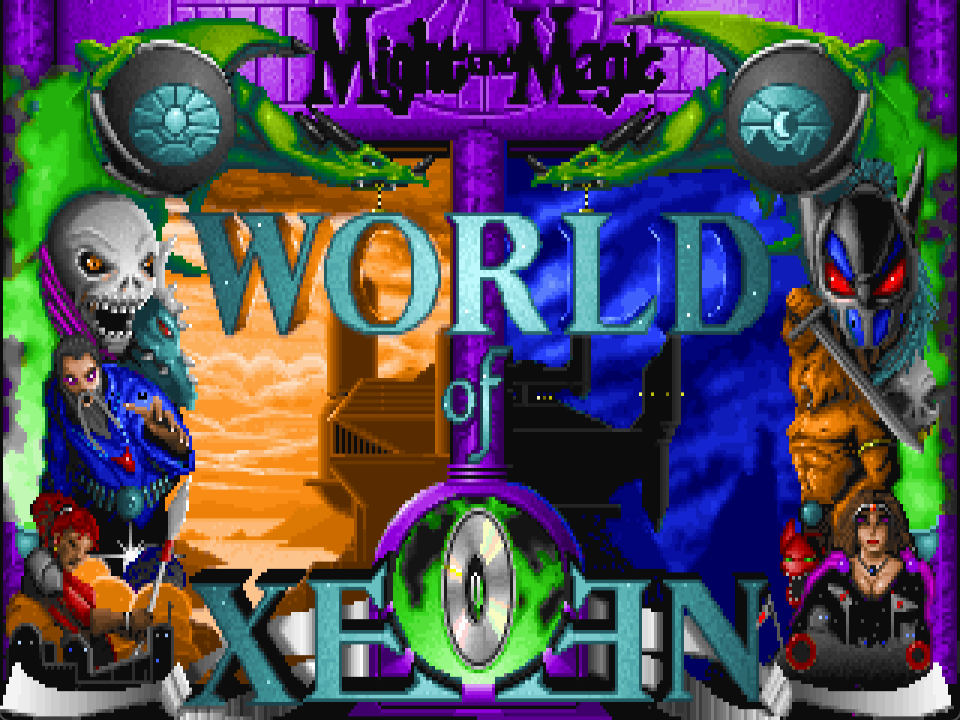
What works today
Clouds of Xeen is complete. Every map plays as in the original, and the story has been checked from the start through Lord Xeen to the ending.
Darkside of Xeen is complete too: every map, town and Event, the World of Xeen areas that join the two sides, and its ending. Winning World of Xeen plays its own ending as well. Darkside hasn't been played through from start to finish yet, so expect more bugs there than in Clouds. Reports are very welcome (see Reporting a problem).
The game can also be played in Russian with the old-games.ru fan translation (see Russian).
Download and play
You need Windows 10 or 11 (64-bit) and a legally obtained English World of Xeen CD edition. MMModern never copies or modifies your game files.
- Download the latest
MMModern-<version>-windows-x64.zipfrom the releases page. - Unpack it into a folder of your own, not inside the game folder.
- Double-click
MMModern.batto open the launcher. It looks for your remembered game folder, then GOG's installation; if needed, choose the folder containingWORLD\XEEN.DAT. The window shows the data and sound devices found. Press Enter or click Play to start the game. - Use Change game folder if you move the installation. You can also run
mmodern.exe "C:\GOG Games\Might and Magic 4-5"from a command prompt.
The launcher stays open while you play. The game opens in front without a console window. If it fails, the launcher shows the error and offers to open its log.
Steam Deck (Proton)
Copy your World of Xeen game folder to the Deck, or install the GOG game with
a launcher such as Heroic. Unpack the Windows zip outside that folder. In
Steam, add the unpacked mmodern.exe as a non-Steam game and, in its
Properties, select Proton under Compatibility. Set the launch options to
the game folder, for example (including the quotes):
"Z:\home\deck\Games\Might and Magic 4-5"
Replace the example with your actual folder. Start the shortcut from Game Mode. The Windows launcher and its Sound setup and Language dialogs do not run under Proton; direct play uses the installed sound configuration.
MMModern uses keyboard and mouse input. In the shortcut's controller settings, start from the Keyboard (WASD) and Mouse template and change it to this layout, which was played on a Steam Deck:
| Deck control | Keyboard or mouse action |
|---|---|
| A / B / X / Y | Enter / Escape / Space / Tab (control panel) |
| D-pad and left stick | Arrow keys: forward, back, turn left and right |
| Left stick click / R1 | W (wait) / B (bash or block) |
| L4 / L5 / R4 / R5 | A (attack) / C (cast) / S (shoot) / R (rest or run) |
| Left trackpad, pressed at an edge | Up M (map), down I (info), right Q (quick reference), left F (quick fight) |
| Right trackpad or right stick / triggers | Mouse / left mouse click |
| L1 | Alt+Enter: window or fullscreen |
| Menu / View | Escape / Tab |
Click a portrait in place of F1-F6; touching the screen also clicks. Steam+X opens the on-screen keyboard for names and number keys. The other keys are in the controls.
The shortcut's Proton prefix is under
~/.local/share/Steam/steamapps/compatdata/<shortcut-id>/pfx/. Within it,
drive_c/users/steamuser/AppData/Local/MMModern/ contains window.ini,
logs/ and Saves/<game-data-id>/. In window.ini, aspect=square fills
the 1280x800 screen; the default aspect=4:3 leaves side borders. Change it
while the game is closed.
Linux
- Download
MMModern-<version>-x86_64.AppImagefrom the releases page. You need 64-bit x86 Linux and your own English World of Xeen CD game data. - Make the download executable in your file manager's Properties, or run
chmod +x MMModern-<version>-x86_64.AppImagein a terminal, replacing<version>with the downloaded version number. - Double-click it, or run
./MMModern-<version>-x86_64.AppImage. The setup screen looks for your remembered game folder, then GOG installations in~/Games/Heroic,~/GOG Gamesand the default Wine prefix. If needed, use Change game folder to choose the folder containingWORLD/XEEN.DAT. - Use Sound setup to choose devices and Language for the Russian translation. Copy diagnostics helps with problem reports. Press Enter or click Play. Alt+Enter, the window and the keys work as on Windows.
The runtime bundles its FUSE library, including on systems without
libfuse2. If FUSE mounting is unavailable, run the download with
--appimage-extract-and-run, for example
./MMModern-<version>-x86_64.AppImage --appimage-extract-and-run.
Saves, settings.ini, the sound choice, window.ini, the MT-32 roms/ and
the remembered game-folder.txt are in ~/.local/share/MMModern, or in
$XDG_DATA_HOME/MMModern when that variable is set. The log is
logs/mmodern.log, and saves are in Saves/<game-data-id>/; the setup screen
can open both folders. Saves on a network drive (NFS, SMB, sshfs and similar)
are refused; if your home folder is on one, set XDG_DATA_HOME to a folder on
a local disk.
On a Steam Deck you can start this AppImage in Desktop Mode, or add the executable AppImage to Steam as a non-Steam game and start it in Game Mode. Leave Compatibility forcing off for the native Linux version. Use the keyboard and mouse layout above; touch and the right trackpad click the setup screen's buttons. Steam+X opens the on-screen keyboard when choosing a folder. Your game data stays in its own folder.
Russian
MMModern can show the old-games.ru Russian fan translation (Clouds of Xeen
RUS and Darkside of Xeen RUS 1.2) over your English CD game. Put these five
files from the translation in one folder: xeen.cc from Clouds of Xeen RUS,
and dark.cc, intro.cc, xeen.dat and xeen.exe from Darkside of Xeen
RUS 1.2. In the launcher, click Language, choose Russian and pick that
folder. MMModern reads those files and never changes them; other versions of
the translation are refused, and the game plays in English.
Texts, pictures and the font come from the translation, while maps, rules, music and the recorded speech, which stays English, come from the CD. The keyboard follows the Russian program: letters type Cyrillic by their position on a Russian keyboard, whatever your Windows layout, and Shift gives capitals. The Russian program's own key oddities are kept; the controls page lists them. The translation's text hasn't been checked in play by a Russian reader yet, so reports are welcome.
Display and sound
The game window can be resized or maximized, and Alt+Enter switches between the
window and borderless fullscreen. By default the picture fills the largest 4:3
area with black borders, matching the shape of the original display. Window
mode and size are remembered in %LOCALAPPDATA%\MMModern\window.ini, apart
from saves. Set aspect=square in that file to use the former square-pixel
presentation, scaled in whole multiples of 320x200. Set aspect=4:3 or delete
the file to restore the default.
The original FM music, digital effects, shop and entrance voices, dream, death laugh and CD speech play together. Text off hides the NPC text replaced by speech; unavailable speech restores readable text. Audio follows the Windows default output at its own rate, including changes during play. Output failures silence audio with one notice and keep the game running; device removal reopens the default output.
Use Sound setup in the launcher to choose the music and the speech device
from the original installer's lists. The devices MMModern plays come first,
with Sound Blaster Pro music and Sound Blaster 16 speech recommended, as the
CD installs them; the others are listed under "No sound in MMModern yet". The
installer's port, IRQ, DMA and volume questions are under Advanced; they
described the original DOS sound cards and do not change the sound quality in
MMModern. The choice is saved in %LOCALAPPDATA%\MMModern\XEEN.CFG; the installed
WORLD/XEEN.CFG is never changed. Reset to installed removes the owned
choice and restores the installed devices (SB Pro music and SB16 speech in
GOG's installation). Command-prompt play uses the same choice.
AdLib, Sound Blaster, Pro Audio Spectrum and MT-32 music play. For MT-32,
put your MT-32 1.07 control ROM and MT-32 PCM ROM, under any file names, in
%LOCALAPPDATA%\MMModern\roms; MMModern includes no ROMs. The launcher
reports whether they are identified. A device awaiting support can still be
chosen; the game stays silent and shows a notice.
Reporting a problem
Use Copy diagnostics in the launcher and paste the report into a
bug report.
Describe what happened, what you expected, and the steps, with map and
coordinates when known. Attach %LOCALAPPDATA%\MMModern\logs\mmodern.log
(and mmodern-previous.log after a crash) and the affected save slot from the
folder shown in the report. Profile paths in the report and log are abbreviated.
Never attach original game files or MT-32 ROMs.
Saving
Press Tab, or click the gem, to open the control panel with Save, Save As, Load
and Quit. There are ten slots, stored in
%LOCALAPPDATA%\MMModern\Saves\<game data id>\slot-0.mmsave to slot-9.mmsave.
During 0.x, saves from an older release may show as "Unavailable" if the save format has changed. Choosing one tells you why, and New can overwrite that slot after you confirm. Compatibility will be reconsidered for 1.0. A save only works with the game data it was made with, and neither the original games nor ScummVM can read it.
Controls
The mouse works on every button, portrait and dialog, as in the original. The most used keys:
| Key | Action |
|---|---|
| Arrow keys | Move and turn |
| Ctrl+Left / Ctrl+Right | Strafe |
| Space | Interact; continue text |
| F1-F6 | Character sheet; pick a party member |
| A / B / R | Attack / Block / Run in combat |
| S / R / B | Shoot / Rest / Bash while exploring |
| C | Cast a spell |
| M / = | Map / automap on or off |
| Tab | Control panel: Save, Load, Quit |
| Escape | Back or cancel |
| Alt+Enter | Window or fullscreen |
The full list of controls covers the character sheet, Items, Quick Fight and every service.
Status and plans
The project status page has the full current state, the project history lists finished milestones and the roadmap shows what comes next. The game rules reference documents mechanics, formulas, evidence from the original program and open differences from the ScummVM reference.
Planned extras
Later, MMModern may add a few things the original never had. None of them has been studied yet, and each will be an option that is off by default, so the game stays faithful unless you turn it on:
- Graphics filters for the scaled picture.
- Switching between the original sound devices from inside MMModern,
instead of through
XEEN.CFG. - Game controller support.
- Possibly some interface improvements.
Building
Development uses Windows x86-64 with MSYS2 UCRT64, or Linux x86-64 with GCC (validated on Ubuntu 26.04), with CMake, SDL2, zlib, libvorbis/libogg and a separate ScummVM source and build tree. MMModern reuses selected ScummVM Xeen and support code, but it does not run ScummVM's engine or SDL backend. Dependencies covers the setup, the pinned ScummVM revision and release packaging.
Development covers the command-line entry modes, which game data is read, the test suite and the developer test saves used for play-testing.
Documentation
- Project status: what can be played, architecture, gaps.
- Project history: completed milestones.
- Roadmap: next milestones and direction.
- Controls: every key.
- Development: entry modes, tests and developer test saves.
- Dependencies: toolchain, ScummVM setup and release packaging.
- ScummVM differences: where MMModern behaves differently from ScummVM, and why.
- Agent instructions: development, documentation and Git rules.
Disclaimer and license
MMModern is unofficial and is not affiliated with or endorsed by Ubisoft, New World Computing or the ScummVM project. Might and Magic names and assets belong to their respective copyright holders.
MMModern is distributed under the GNU General Public License version 3 or, at
your option, any later version (GPL-3.0-or-later). Reused ScummVM code is copyright
its respective contributors and licensed under GPLv3 or later. The release zip's
THIRD-PARTY.txt lists the bundled libraries, including static libvorbisfile,
libvorbis and libogg, their licenses and corresponding source.
Comentarios (0)
Inicia sesión para dejar un comentario.
Sé el primero en comentar sobre este juego.