

Aliens versus Predator (AVP VR)
Port nativo de Aliens versus Predator (AVP VR) para PC.
Aliens versus Predator (AVP VR)
Port nativo basado en su ficha de origen.
README del repositorio
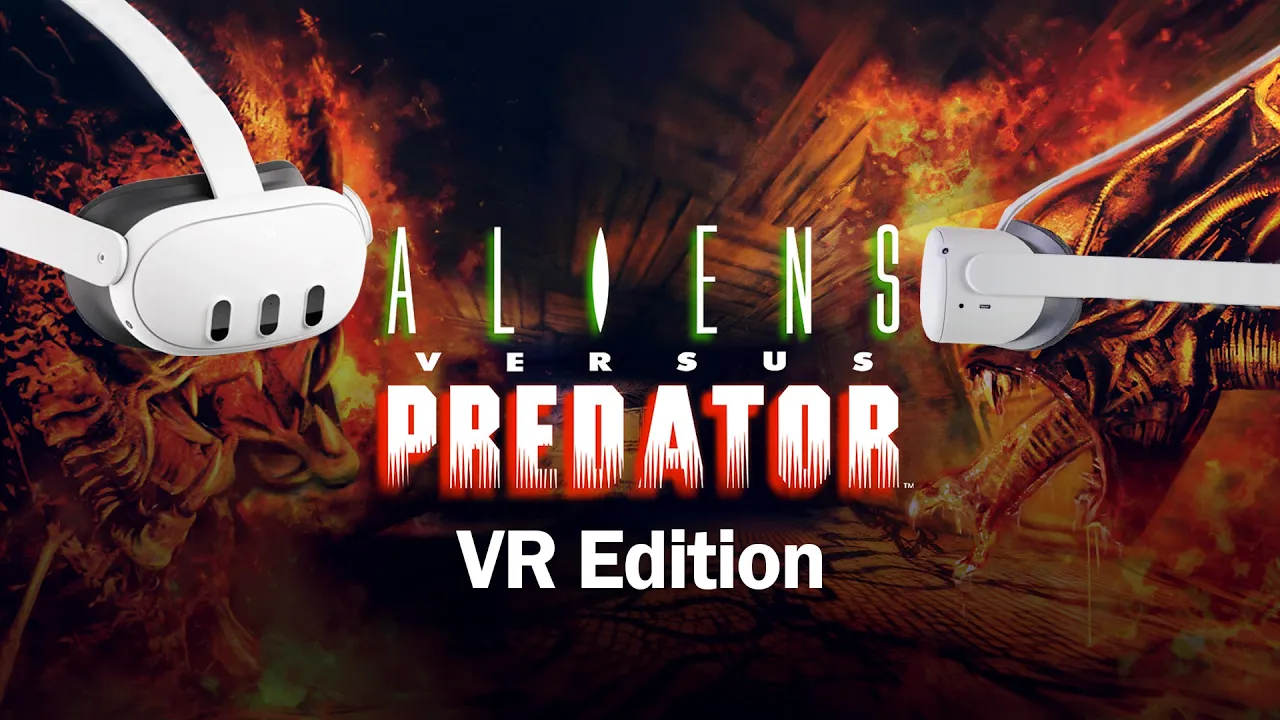
Aliens Versus Predator: VR and Flat (non-VR)
This is based on the code from atsb over at atsb/NakedAvP v1.2.3. Game asset files are NOT included. Instructions on how to add them can be found below. I'm not primarily a programmer, this was done with a lot of help from various AI like Claude, Copilot and Gemini.
[!TIP] Check the new 1.4 update on releases page. A 7 min YouTube video about v1.0 can be found here.
What's new in 1.4?
- Added Environment Reverb option in Audio/Video Options menu to reflect the original games EAX audio. You can choose different strengths or off. Gives it a new dimension!
- Moved antialiasing options to Audio/Video Options > Details Levels Menu due to running out of space.
[!TIP] Re-center your view (hold Meta button) while standing before starting a level so things aren’t small! There is Sitting Mode option in VR Controls.
Compatible builds made for these devices:
| VR Versions |
|---|
| Quest 1 |
| Quest 2 |
| Quest 3 |
| Quest 3S |
| Quest Pro |
| SteamVR Windows |
| SteamVR Linux |
| Pico |
| Flat Versions |
|---|
| Windows x64 |
| Windows x86 |
| Windows arm64 |
| Linux x64 |
| Linux x86 |
| Linux arm64 |
| Android 8 and above arm64 |
| Android 8 and above arm |
Screenshots and video demo


Short video of it in action on a Quest 2 here on YouTube.
[!IMPORTANT] You need to supply the games asset files. Buy the game on Steam (often on sale) or find cd/downloads of Aliens Versus Predator Gold Edition. It has to be the Gold Edition as the standard versions 'language.txt' file crashes the game. You can use the standard versions files if you use the Gold Edition language.txt, the videos are different! Check eBay or GOG or Steam.
Sections
Step-by-step for Quest standalone
Step-by-step for Windows and Linux (both PCVR and flat)
Step-by-step for Quest standalone
Copying the game assets. Its the same for all devices:
- Install the original pc game from disk/download (such as Steam or GOG) like normal on your pc.
- Copy the games assets from *C:\Program Files (x86)\Fox\Aliens versus Predator* or from your Steam/GOG game directory. You need the following:

- Files and folders all need to be lower case but not necessary for PCVR or Flat Windows/Linux, you can skip to step 6. To make renaming easier and in one go, download the lowercase.ps1 powershell script or find it in the assets folder of this project. Place the script into the folder where the assets are.
- Run the script in Powershell (type lowercase.ps1) and all files will now be lowercase. On windows, if you get a security error, use this command: powershell -ExecutionPolicy Bypass -File .\lowercase.ps1. On Linux, run it as: pwsh ./lowercase.ps1. (Install pwsh first if it's not there - sudo apt install powershell or via Snap, depending on distro.)
- Now plug your headset in via USB.
- Download the Aliens Versus Predator: VR release apk and install it with SideQuest using the "Install APK file from folder on computer". (Your headset probably should be in Developer mode already):

- After install completes, you should see this in the "Currently installed apps":

- On the headset, run the Aliens Versus Predator: VR in Unknown Sources first, this will crash out as the assets haven't been added yet, this is normal and this sets the folders and their permissions in place.
- Now still in SideQuest, go to "Manage files on the headset".
- Navigate to "sdcard/Android/data/com.bassquake.quest.avpvr/files". If installing on phone or tv, use the folder "sdcard/Android/data/com.bassquake.android.avp/files". (On builds 0.6 to 1.1 the phone/tv path is sdcard/Android/data/com.bassquake.android.avpvr/files, and on 0.5 and older it was sdcard/Android/data/com.bassquake.avpvr/files).
- Copy all the game assets into that files folder. The layout should be like so on your device:

- Now on your headset, go to Unknown Sources on the headset and click on Aliens Versus Predator: VR to play!
Step by step for Windows and Linux (both PCVR and flat)
To run Aliens Versus Predator on Windows/Linux, download the zip from Releases page and extract into where the game assets are. It should look like this in screenshot below:

Flat
Where you've saved the game assets folder, copy the avp_x64.exe or avp_x86.exe or avp_arm64.exe into it and simply double click the exe to run. Same for Linux.
For Android devices, install the apk avp-x.x-android-arm64-v8a-release.apk either via SideQuest or from a usb plugged into a Android TV for example, then copy assets into the data folder like how it's done for Quest. Folder is called sdcard/Android/data/com.bassquake.android.avp/files (Note its "avp" for flat builds, not "avpvr"). Connect a bluetooth keyboard and mouse to play!
PCVR
Where you've saved the game assets folder, copy the avp_x64vr.exe into it and then add to Steam Library as a non-Steam game, set it as "Include in VR Library" in the Steam Shortcut options:

Rename the shortcut by going to Properties:

Then name the shortcut seen here:

To customise the images in Steam Library so it looks nicer like mine or use your own, download the extra zip file steamvr-custom-images.zip in Releases page, unzip the images from steamvr-custom-images.zip somewhere. Then click the gear icon and select Properties:
Choose Customization and change images. The image files are named the same as the artwork title:

Finally, to play, on your headset, run Steam Link and navigate to the game in your library. Simply click Play! (Virtual Desktop is untested).
See below if want to include CD music if you have the physical game's second CD or a digital copy found online...
CD music
You can skip this if you don't absolutely need background music, game will play fine without it but you will lose the atmosphere! Steam and likely GOG have the music embedded so it wont be in their assets folder, you have to find a copy of the CD or simply download from moddb.com. (There may be differences in track order to the CD. I need to look into it. Edit: Apparently the original CD track order is different to Steam. Use the moddb version if want same as Steam, otherwise use the CD which I think is the proper order.)
Do the following for the files:
- Create a folder in sdcard/Android/data/com.bassquake.quest.avpvr/files/ called cd_tracks.
- Or on Windows/Linux create a folder called cd_tracks where the exe and the assets are.
- Either rip the CD's audio tracks to Ogg Vorbis 160kbps and copy them over into the cd_tracks folder on your headset or Windows game location. Make sure they're lowercase and exactly named as track01.ogg, track02.ogg etc.
- Or if you downloaded from moddb.com rename the ogg files as track01.ogg, track02.ogg etc and copy to cd_tracks folder.
- Run the game!
Controls
For VR

[!NOTE] Manual reload is hold A (Marine and Predator). A quick press of A still uses switches and doors. It can be rebound in the Controller Configuration for each species.
[!CAUTION] If you've updated and find the controller buttons aren't right such as double action on the same button, I had to change the default layout slightly, it's best to reset to default and then customise if you need to.
For flat
Flat versions uses standard keyboard and mouse or joystick (Gamepads). They can be customised in the game under Controls.
[!NOTE] You may have to add WASD yourself as the game originally uses arrow keys.
Gamepad controllers use the following by default

How to use Multiplayer
You can multiplay on a local LAN or online against others. Any machine can play against any other so a pc player can play against a pcvr or Quest player!!!
Multiplayer is pretty basic seeing as it was based in 1999! Follow these instructions:
- Organise a group of people to be online and run the game.
- Check bassquake.ddns.net says online at the bottom of the Multiplayer menu. This is my own relay server that's running on a linux server (always online isn't guaranteed!)
- One of you will host the game so go to Multiplayer > Host Game.
- Set the game parameters and Start. A random code appears at the top of the screen. Give that code to up to 8 players to join.

- For people to join, go to Multiplayer > Join Game and enter the code and Start. You should now be in the game!

Extra features
- World Scale added so you're taller in VR.
- Can choose different refresh rate for VR in Audio/Video Options, runs fine in 120fps mode!
- Can turn on/off the cross-hair in Audio/Video Options.
- Frame rate counter can be toggled in Audio/Video Options.
- Antialiasing options added for MSAA in Audio/Video Options.
- Texture Filtering options added in Audio/Video Options.
- Works with the HD AvP Redux Mod pack! Edit 1: Seems there’s an issue with the HUD and crosshair for Marine with the Redux Mod. Edit 2: Fixed in 0.7 and up. Note: Some 3D objects have missing shapes. This is not the games fault, it seems the HD Redux is incomplete!
- Cheat modes can be toggled for those faint of heart!
- Left-Handed Mode.
- Can punch/scratch enemies as Predator/Alien in VR.
- Multiplayer now working.
- Seated Mode added.
- EAX Environmental Reverb Added.
To do
Fix Battery Saver crash.Fixed.Fix audio direction.Fixed.Extra options for VR specific things like adding blinders or change snap/smooth turning etc.Added.Add rumble effects to controllers.Added.Add CD music.Added.Maybe add anti-aliasing options but not sure if really needed.Added MSAA options in Audio/Video Options screen.Add multiplayer functionality if possible.Added.Add cheat modes.Added.Add ability to adjust HUD.Added.Add Manual Reload option.Added.Add Quest 1 compatibility.Added.Add recalibrate option to right long press Meta button.Added.Add PCVR.Added.To add correct wall walking for Aliens on Quest.Fixed.Add ability to customise controller key mapping.Added.Add option for left handed usersAdded.- Add shadow/fog effects?
- Do an RTX Remix version?
Comentarios (0)
Inicia sesión para dejar un comentario.
Sé el primero en comentar sobre este juego.